
Every project generates a steady stream of decisions, problems, risks, requests and small tasks. Some are discussed in meetings, others in emails or phone calls, and many are forgotten until they cause trouble. A project log captures them all in one place. With a single, searchable list of what was raised, who owns it, when it is due and what happened, the project manager keeps control and the team always knows what needs attention.
Our free project log template for Excel combines tasks, issues, risks, decisions and changes in one table. Drop-down lists set the type, priority and status, status cells change colour automatically, and a summary counts open, in-progress and closed items. Preview the template below, download the XLSX file and use our guide to keep your projects organized.
Download the free project log template
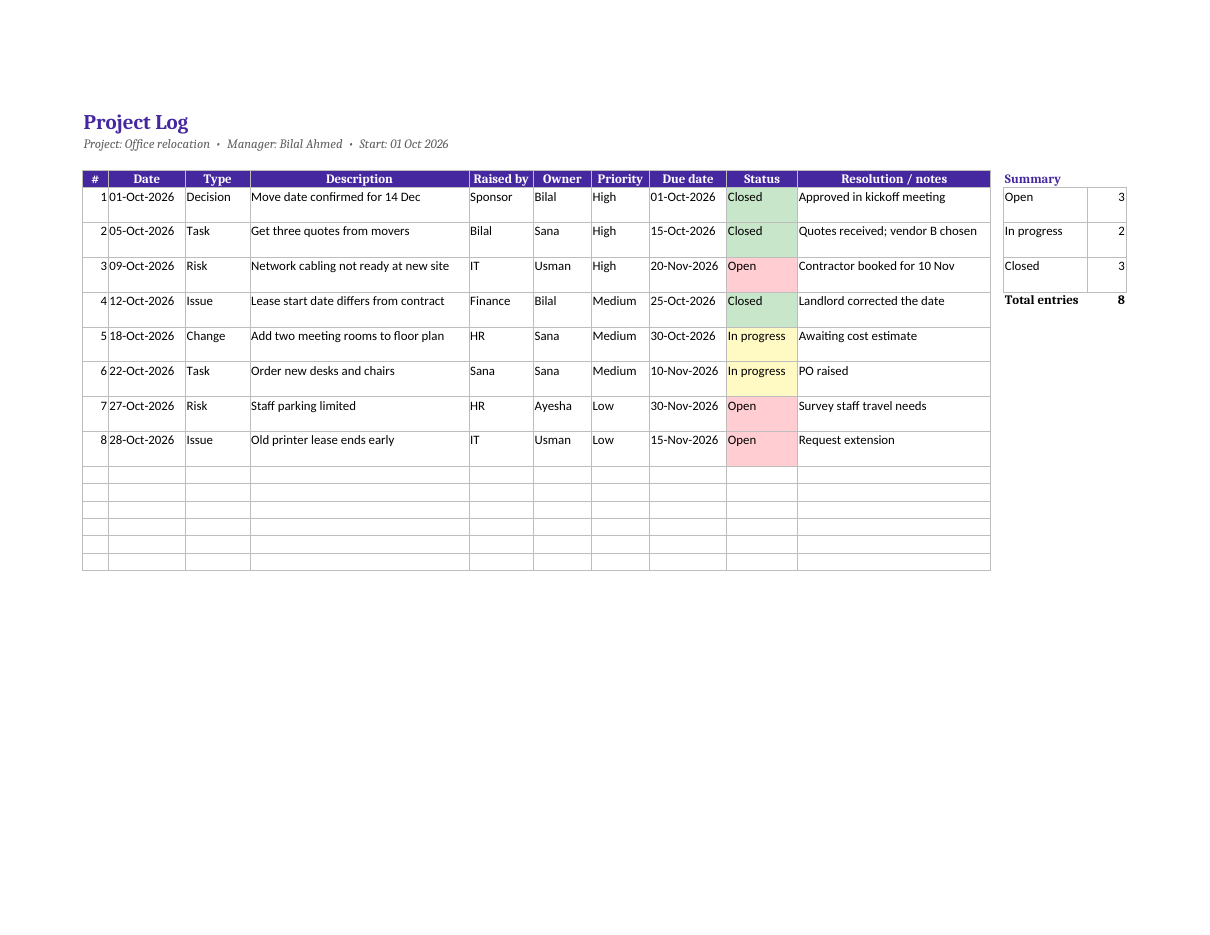
The spreadsheet works in Microsoft Excel, Google Sheets, LibreOffice Calc and Numbers. The header row is frozen for easy scrolling, and the layout prints on one landscape page.
What is a project log?
A project log is a running record of the events, items and decisions that arise during a project. It may be called an issue log, RAID log (risks, assumptions, issues and decisions), action log or project journal, depending on what it tracks. A combined log, like this template, is ideal for small and medium projects because the team only has to maintain one list. Each entry has a unique number, a date, a description, an owner and a status, so nothing slips through the cracks.
What the template includes
- Project name, manager and start date in the header.
- Entry number for easy reference in meetings and emails.
- Date raised.
- Type drop-down: Task, Issue, Risk, Decision, Change or Note.
- Description.
- Raised by and owner.
- Priority drop-down: High, Medium or Low.
- Due date.
- Status drop-down: Open, In progress, On hold or Closed.
- Colour-coded status: red for open, yellow for in progress and green for closed.
- Resolution and notes.
- Automatic summary of open, in progress and closed entries and total entries.
Types of log entries
Tasks and actions
Specific pieces of work agreed in meetings or conversations, such as "Get three quotes from movers". Each has an owner and a due date.
Issues
Problems that have already happened and need to be resolved, such as a lease date that differs from the contract.
Risks
Things that might happen and affect the project, such as network cabling not being ready. Record the action you will take to prevent or reduce the risk.
Decisions
Important choices and approvals, such as confirming the move date. Recording decisions avoids repeated debates and shows who agreed to what and when.
Changes
Requests to change the scope, schedule or budget, such as adding meeting rooms to a floor plan. Track the cost estimate and approval.
How to use the project log
- Enter the project name, project manager and start date in the header.
- Add a new row every time something is raised in a meeting, email or call.
- Give each entry the next number and today's date.
- Choose the type from the drop-down list.
- Write a short, clear description that anyone can understand.
- Record who raised it and who owns it.
- Set the priority and a realistic due date.
- Set the status to Open.
- Update the status and notes as work progresses.
- Record the resolution and set the status to Closed when it is done.
- Review open and in-progress items at every project meeting.
- Filter by owner or priority to prepare follow-ups.
Example: office relocation project
The sample log tracks an office move. The move date was confirmed as a decision, three mover quotes were gathered as a task, network cabling at the new site was logged as a high risk, a lease date mismatch was raised and resolved as an issue, and adding two meeting rooms was logged as a change request. The summary shows three open items, two in progress and three closed, giving the manager an instant view of the workload.
Tips for keeping a useful project log
- Make one person responsible for updating the log, usually the project manager or coordinator.
- Log items as soon as they are raised, not days later.
- Assign one owner per item; shared ownership often means no ownership.
- Use clear, specific descriptions.
- Set realistic due dates and follow up when they pass.
- Review the log in every project meeting.
- Never delete entries; close them so you keep the history.
- Share the log in a shared drive so everyone sees the latest version.
- Use filters to view by type, owner or status.
Project log vs status report
A project log is a working tool that captures every item in detail; a status report is a summary for stakeholders. Use the log to manage day-to-day work and to prepare your status report each week. Open high-priority issues and risks from the log become the "risks and issues" section of the report, while closed items and decisions provide material for the accomplishments section.
Using filters and sorting
Excel's filter buttons make the log much more powerful. Select the header row and choose Data > Filter. You can then show only open items, only high-priority risks or only items owned by a particular person. Sort by due date to see what is coming up next, or by type to review all decisions made so far. Because the summary counts use formulas, they update automatically whenever you change a status.
Customizing the template
Add columns that matter for your project, such as impact, probability, cost or related document. Rename the types to match your methodology, or split the log into separate sheets for risks, issues and decisions if your project is large. You can also add a "date closed" column to measure how quickly items are resolved. Change the purple header colour to match your organization's style.
Who uses project logs?
Project managers, site supervisors, event organizers, IT teams, marketing managers and consultants all use project logs. They are especially valuable when several people or organizations are involved, because they create a shared record of responsibilities and decisions. A well-kept log also protects the project manager if questions arise later about who agreed to a change or when a problem was first raised.
Lessons learned at project close
At the end of a project, the log becomes one of your most valuable sources for a lessons-learned review. Filter by type to see all the issues that occurred and how long they took to resolve, review the risks that turned into real problems and look at the change requests that affected the schedule or budget. Discuss with the team what could be done differently next time, such as starting supplier quotes earlier or booking contractors sooner. Record the conclusions and keep the log with the project files so future project managers can benefit from your experience.
Running a log review in project meetings
The log is most useful when it is reviewed regularly. At the start of each project meeting, filter the log to show open and in-progress items, sorted by priority and due date. Go through each item quickly: is it still on track, does the owner need help, can it be closed? Add new items raised during the meeting on the spot, with an owner and due date agreed before moving on. This simple routine keeps meetings focused on actions rather than discussion, and ensures that every agreement is captured. After the meeting, send the updated log or a link to it so everyone sees their responsibilities.
Prioritizing log entries
Not every item deserves the same attention. High priority should be reserved for items that could delay a milestone, increase costs significantly or affect safety and quality. Medium priority suits items that need action within the next few weeks, while low priority covers minor improvements and nice-to-have requests. Review priorities regularly, because a low-priority risk can become urgent as the project approaches a key date. Combining priority with the due date helps the team focus on the right work at the right time.
Frequently asked questions
Is this project log template free?
Yes. Download and use it for any project.
How do I add more rows?
Simply type in the next empty row. The drop-down lists and colour-coded status apply to rows up to 200, and the summary counts include them.
What is a RAID log?
A RAID log tracks Risks, Assumptions, Issues and Decisions (sometimes Dependencies). Add "Assumption" or "Dependency" to the type list to use this template as a RAID log.
Can several people edit the log?
Yes. Upload it to OneDrive, SharePoint or Google Drive so the team can edit it together.
Should I log small items?
Log anything that needs an owner, a decision or follow-up. Very small items can be grouped together as notes.
How is a project log different from a to-do list?
A to-do list tracks tasks only, while a project log also records issues, risks, decisions and changes with owners, priorities and history.
Related templates
- Action plan templates
- Meeting minutes templates
- Progress report templates
- To-do list templates
- Weekly schedule templates