
A to-do list is one of the simplest and most effective productivity tools ever invented. Writing tasks down frees your mind from trying to remember everything, helps you prioritize what matters and gives you the satisfaction of ticking items off as you complete them. Checklists take the idea further, making sure that routine processes, such as opening a shop, packing for a trip or completing a safety inspection, are followed correctly every time.
This page offers a free printable to-do list template in Word plus a set of checklist templates in Excel and Word. Preview each layout, download the file that matches how you work and use our tips to build to-do lists and checklists that help you get more done with less stress.
Download free to do list and checklist templates
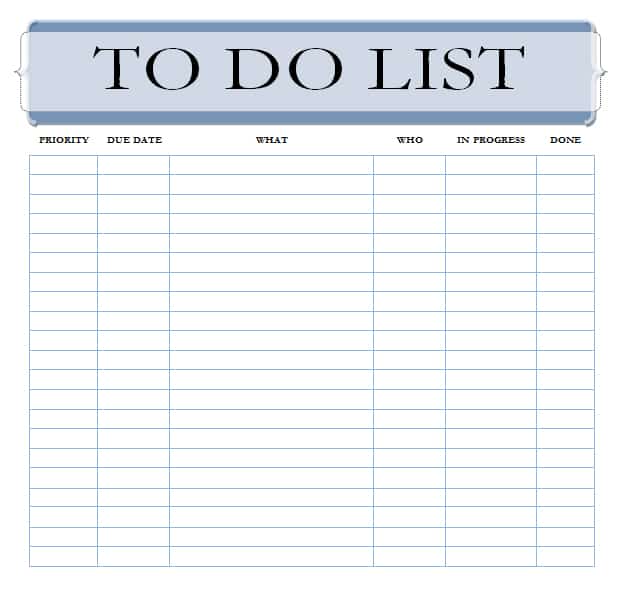
Download Free To Do List Templates:

Checklist Templates:
The DOCX files open in Microsoft Word, Google Docs and LibreOffice Writer. The XLSX checklists open in Microsoft Excel, LibreOffice Calc and Google Sheets, where you can sort, filter and add rows as your list grows.
To-do list vs. checklist: what is the difference?
A to-do list captures the tasks you need to complete, often one-off items that change every day or week, such as "call the bank" or "finish the report". A checklist lists the steps of a repeatable process that should be followed the same way every time, such as a monthly closing procedure, a cleaning routine or an event setup. Use a to-do list when you are planning what to work on, and a checklist when you want to make sure nothing is missed in a process you repeat.
Benefits of using a to-do list
- Reduce stress by getting tasks out of your head and onto paper.
- See everything you need to do in one place.
- Prioritize important and urgent tasks.
- Stay focused and avoid forgetting small but important jobs.
- Track progress and feel motivated as you tick items off.
- Plan your day or week realistically.
- Delegate tasks clearly when working with others.
- Build a record of what you have accomplished.
Features of a good to-do list template
- A date or week line at the top.
- Checkboxes for marking tasks complete.
- A priority column or symbols for high, medium and low priority.
- Due dates for time-sensitive tasks.
- A notes column for extra details.
- Sections for categories such as work, home, errands and calls.
- Enough lines for a full day without feeling cramped.
How to make an effective to-do list
- Choose a daily, weekly or project-based list depending on your needs.
- Write down every task that is on your mind, a step known as a brain dump.
- Break large tasks into small, specific actions that start with a verb, such as "draft the introduction" instead of "report".
- Assign a priority to each task.
- Add due dates to anything time-sensitive.
- Pick your top three tasks for the day and do them first.
- Group similar tasks, such as phone calls or errands, to complete them together.
- Tick off tasks as you finish them.
- At the end of the day, move unfinished tasks to tomorrow's list or drop them if they no longer matter.
- Review your list weekly to clear old tasks and plan ahead.
Prioritization methods for your to-do list
The Eisenhower Matrix
Sort tasks into four groups: urgent and important, important but not urgent, urgent but not important, and neither. Do the first group immediately, schedule the second, delegate the third and remove the fourth.
ABCDE method
Label each task A for very important, B for important, C for nice to do, D for delegate and E for eliminate. Work on A tasks first.
The 1-3-5 rule
Plan to complete one big task, three medium tasks and five small tasks each day. This keeps your list realistic.
Eat the frog
Tackle your most difficult or unpleasant task first thing in the morning, when your energy and willpower are highest.
The two-minute rule
If a task will take less than two minutes, do it immediately instead of adding it to your list.
How to use the checklist templates
The Excel checklist templates are ideal for repeatable processes and longer lists. Enter each step in a separate row, add columns for the responsible person, due date and status, and mark items complete as you go. Because the lists are in Excel, you can sort by priority or due date, filter to see only open items and copy the sheet each time you repeat the process. The Word checklist is better for printed lists you will tick by hand, such as packing lists or event setup lists.
Checklist ideas
- Daily opening and closing checklist for shops and restaurants.
- Office cleaning and housekeeping checklists.
- Employee onboarding checklist.
- Month-end accounting and payroll checklist.
- Event planning and setup checklist.
- Travel packing checklist.
- Moving house checklist.
- Wedding planning checklist.
- Website launch and content publishing checklist.
- Vehicle and equipment safety inspection checklist.
- Back-to-school shopping checklist.
- Weekly home maintenance checklist.
To-do list ideas for different needs
- Daily work tasks and meetings.
- Weekly household chores and errands.
- Shopping and grocery lists.
- Study and assignment lists for students.
- Project tasks broken into steps.
- Personal goals and habits.
- Holiday and gift lists.
- Calls and emails to return.
Tips for staying productive with to-do lists
- Keep only one master list so tasks are not scattered.
- Limit your daily list to what is realistically achievable.
- Be specific; vague tasks are easy to postpone.
- Estimate how long each task will take.
- Schedule important tasks into your calendar.
- Review your list at the start and end of each day.
- Celebrate progress, not just finished projects.
- Use a weekly planner for bigger-picture priorities and a daily to-do list for execution.
Paper or digital to-do lists?
Both have advantages. Paper lists are quick, distraction-free and satisfying to tick off, and writing by hand can improve memory. Digital lists are searchable, easy to share and can send reminders. Many people use a hybrid approach: a printed daily to-do list on the desk and a spreadsheet or app for longer-term tasks and team checklists. The templates on this page support both approaches: print the Word list for daily use and keep the Excel checklists on your computer or in the cloud.
Customizing the templates
In Word, click any line to type, change fonts and colours, or add more rows by pressing Tab in the last cell of a table. In Excel, insert rows for extra items, use Data Validation to create drop-down status lists and apply conditional formatting to colour completed tasks green or overdue tasks red. Add your name, team or company logo to personalize the list, and save a blank master copy so you can start fresh each day or week.
Using to-do lists for teams
To-do lists are not only for individuals. Teams can share a single list or checklist so everyone knows who is responsible for each task and what has been completed. Add an owner column and a due date column to the Excel checklist, then save it in a shared folder or open it in Google Sheets so the whole team can update it in real time. During weekly meetings, review open items together, reassign tasks where needed and celebrate completed work. For larger initiatives with goals, owners and success measures, move from a to-do list to a structured action plan.
Building a daily planning routine
The most productive people treat their to-do list as part of a daily routine. Spend five minutes at the end of each workday reviewing what you finished and writing tomorrow's list, so you start the morning with a clear plan instead of an overflowing inbox. In the morning, check your calendar, confirm your top three priorities and block time for them. At midday, take a quick look to see whether priorities have changed. This simple routine of plan, do and review keeps your list realistic and prevents important tasks from slipping through the cracks.
Common to-do list mistakes
- Writing vague tasks such as "work on project".
- Adding far more tasks than you can complete in a day.
- Mixing long-term goals with today's tasks.
- Never removing tasks that are no longer relevant.
- Keeping several lists in different places.
- Ignoring priorities and doing easy tasks first.
Frequently asked questions
Are these to-do list templates free?
Yes. All templates are free to download, edit and print.
Can I use the Excel checklists in Google Sheets?
Yes. Upload the XLSX file to Google Drive and open it with Google Sheets.
How many tasks should a daily to-do list have?
Most people work best with three to five important tasks plus a few small ones. Long lists can feel overwhelming and reduce productivity.
Should I use a to-do list or a checklist?
Use a to-do list for changing tasks and a checklist for processes you repeat regularly.