
Finishing a course, training programme or workshop is an achievement worth recognizing. A certificate of completion gives participants tangible proof of their effort, motivates them to keep learning and adds credibility to your training. For employers, schools, coaches and online course creators, a professional certificate also reinforces your brand every time it is shared, framed or added to a portfolio.
Our free certificate of completion template for Microsoft Word features a refined blue and silver landscape layout with editable fields for the recipient's name, programme or course title, completion statement, issue date, credential ID, seal and authorized signatures. Preview the certificate below, download the editable DOCX file and follow our guide to creating, printing and issuing certificates professionally.
Download the certificate of completion template
Download the Certificate of Completion Template
This refined blue-and-silver Word certificate provides an editable landscape layout for the recipient name, program or course, completion statement, issue date, credential ID, seal, and authorized signatures.
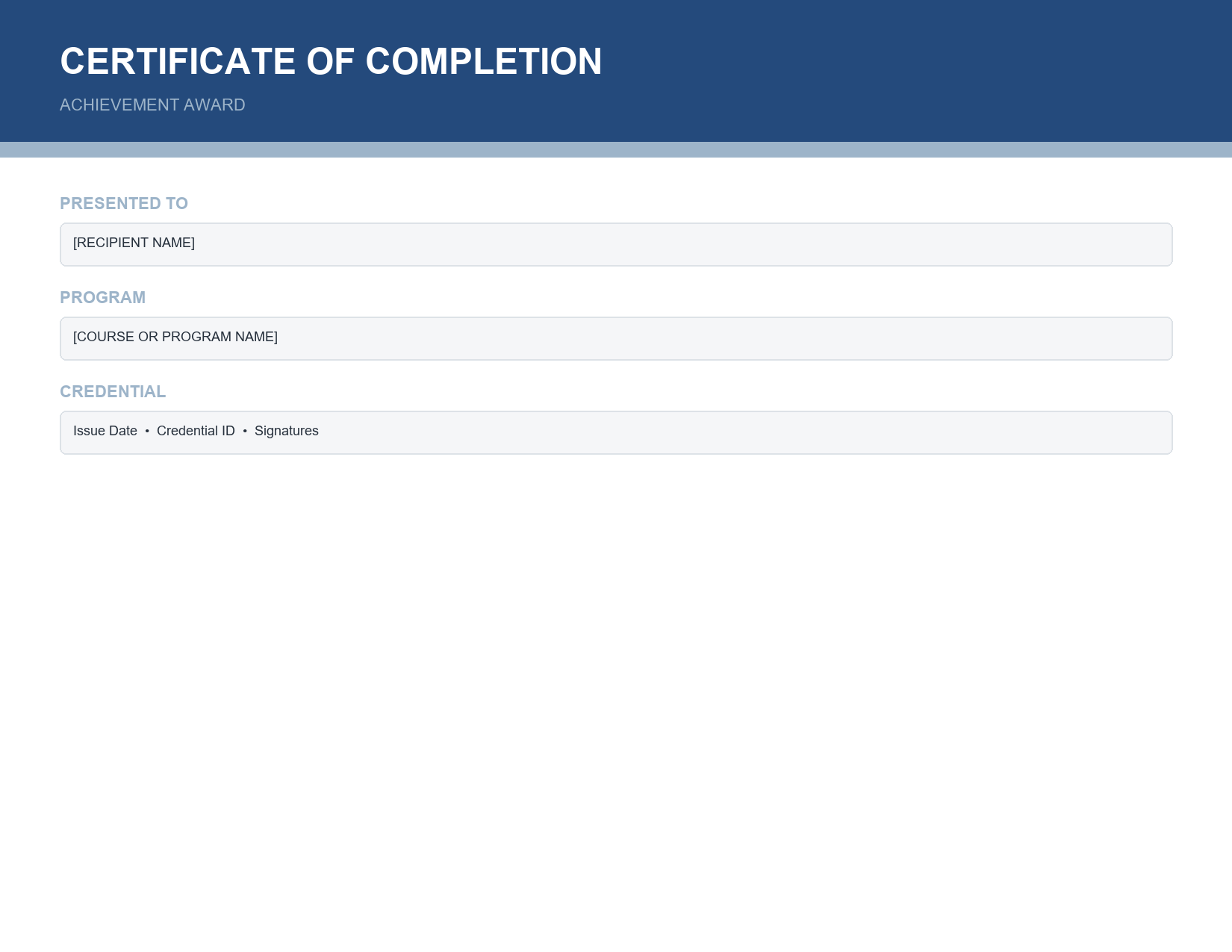
The template opens in Microsoft Word, Google Docs and LibreOffice Writer. It is designed for landscape Letter or A4 paper and prints beautifully on certificate paper or card stock.
What is a certificate of completion?
A certificate of completion is a document that confirms a person has successfully finished a course, training programme, workshop, internship or other learning activity. It typically includes the participant's name, the name of the programme, the date of completion, the issuing organization and one or more signatures. Unlike accredited qualifications or degrees, a certificate of completion usually confirms participation and completion rather than a formal academic credential, unless it is issued by an accredited body.
Features of this certificate template
- Elegant blue and silver design suitable for corporate, academic and professional training.
- Landscape layout, the standard orientation for certificates.
- A large, prominent recipient name line.
- Programme or course title field.
- Completion statement wording that can be customized.
- Issue date field.
- Credential ID or certificate number for verification.
- Seal area for an official emblem or logo.
- Two authorized signature lines with names and titles.
What to include on a certificate of completion
- Title, such as "Certificate of Completion".
- Presentation line, such as "This certificate is proudly presented to".
- Recipient's full name, spelled correctly.
- Completion statement, such as "for successfully completing".
- Name of the course, programme or training.
- Duration, hours or credits, if relevant, for example "16 hours of continuing professional development".
- Date of completion or issue date.
- Issuing organization name and logo.
- Certificate or credential ID for verification.
- Signatures of the instructor, programme director or authorized officer.
- Seal or stamp, if your organization uses one.
How to customize the certificate step by step
- Open the template in Word and save a master copy.
- Replace the organization name and add your logo in the seal area or header.
- Enter the course or programme title.
- Edit the completion statement to suit your programme.
- Add the issue date and a unique credential ID.
- Type the names and titles of the signatories under the signature lines.
- Save this version as your course master.
- For each participant, enter the recipient's name and save or print an individual copy.
- Sign each certificate by hand, or insert a scanned signature image for digital certificates.
- Export to PDF for email delivery or print on quality paper.
Certificate wording examples
- "This certificate is proudly presented to [Name] for successfully completing the Advanced Project Management Workshop."
- "In recognition of the successful completion of 20 hours of Workplace First Aid Training."
- "Awarded to [Name] for completing the Digital Marketing Fundamentals online course with distinction."
- "This is to certify that [Name] has completed the Summer Internship Programme from June to August 2026."
- "Presented to [Name] upon completion of the Leadership Development Programme, Cohort 5."
Uses for certificates of completion
- Employee training, onboarding and compliance courses.
- Continuing professional development (CPD) programmes.
- Online courses and e-learning platforms.
- Workshops, seminars and webinars.
- Internships and apprenticeships.
- School and summer programmes.
- Language courses and tutoring programmes.
- Health and safety, first aid and fire warden training.
- Volunteer training and community programmes.
- Fitness, yoga and coaching certifications.
Generating certificates for many participants
If you need certificates for a large group, use Word's Mail Merge feature. Create an Excel list with columns for participant names, course titles, dates and certificate IDs. In Word, go to Mailings > Start Mail Merge > Letters, select your Excel list as recipients and insert merge fields in place of the recipient name, date and ID. Preview the results and choose Finish & Merge to print all certificates or create a single document with one certificate per page. This saves hours of manual editing and reduces spelling errors.
Using credential IDs for verification
Including a unique credential ID makes certificates more trustworthy. Keep a register of every certificate issued, with the ID, participant name, course, completion date and signatory. Employers or clients can then contact you to verify a certificate. Use a consistent format, such as the course code, year and sequence number, for example PM-2026-0142. For online courses, you can publish a simple verification page or include a QR code linking to a verification record.
Printing tips
- Use heavyweight certificate paper or card stock of 200 to 300 gsm.
- Choose parchment, linen or matte white paper for an elegant finish.
- Print a test copy on plain paper to check alignment.
- Set the printer to the highest quality setting and landscape orientation.
- Let ink dry fully before handling or signing.
- Sign with a blue or black pen for an authentic look.
- Add an embossed foil seal for extra prestige.
- Present certificates in folders or frames for special occasions.
Digital certificates
Many organizations now deliver certificates digitally. After customizing the certificate, export it to PDF, add a scanned signature image if needed and email it to the participant. Digital certificates are easy to store, share on professional networks and print later if desired. Make sure file names are clear, such as Certificate-Firstname-Lastname-CourseName.pdf, and keep a copy for your records.
Certificate of completion vs. certificate of achievement vs. accreditation
A certificate of completion confirms that a participant finished a programme. A certificate of achievement or excellence recognizes outstanding performance, such as top marks or a competition win. An accredited certificate or qualification is issued by an approved body and meets formal standards set by an accrediting organization. Be careful not to imply accreditation or professional licensing if your programme is not formally accredited; clearly state what the certificate represents.
Design tips for professional certificates
Simplicity looks more premium than clutter. Keep the recipient's name as the largest text after the title, use one elegant serif or script font for headings and a clean font for details, and limit colours to two or three that match your brand. Leave generous margins and white space so the certificate looks balanced when framed. Align signature lines evenly and keep supporting text small but readable. If you add a logo, place it in the seal area or at the top centre rather than scattering several images across the page.
Issuing certificates for online courses
Online course creators can use this template to reward learners automatically. Prepare a master certificate in Word with your course title and signatures, then use Mail Merge with a spreadsheet exported from your course platform to create personalized PDFs. Many learners share certificates on professional networks, so include your brand name and website clearly, which turns each certificate into free promotion for your course. Keep certificate wording accurate, stating the course title, the number of learning hours and the completion date, and avoid implying formal accreditation unless your course has been approved by a recognized body.
Keeping a certificate register
A certificate register is a simple spreadsheet recording every certificate you issue. Include the credential ID, recipient name, email, course or programme, completion date, issue date, signatory and delivery method. A register makes it easy to reissue lost certificates, answer verification requests from employers and report on training completions for compliance audits. Store it securely, as it contains personal information, and back it up regularly.
Common certificate mistakes
- Misspelled recipient names.
- Incorrect course titles or dates.
- Missing signatures or unclear signatory names.
- Low-quality logos that look pixelated when printed.
- Overcrowded designs with too many fonts and colours.
- Implying accreditation that the programme does not have.
Frequently asked questions
Is this certificate template free?
Yes. Download, edit and print it for your courses, training or events.
Can I edit the certificate in Google Docs?
Yes. Upload the DOCX file to Google Drive and open it with Google Docs. Check fonts and alignment before printing.
Can I add my logo?
Yes. Use Insert > Pictures to add your logo in the seal area or at the top of the certificate.
How do I create certificates for a whole class?
Use Word's Mail Merge feature with an Excel list of participant names to generate all certificates at once.
Is a certificate of completion an official qualification?
Not usually. It confirms completion of a programme. Only accredited bodies can issue formal qualifications.