Your menu is one of the most powerful marketing tools your restaurant has. Guests read it at the moment they decide how much to spend, and a well-designed menu can lift average order values, highlight your signature dishes and reinforce your brand. Hiring a designer for every menu change is expensive, though. Our free restaurant menu template for Microsoft Word gives you an elegant, professional layout that you can update yourself in minutes whenever prices or dishes change.
Preview the menu below, download the editable DOCX file, and read our guide to menu design, writing mouth-watering descriptions, pricing and printing.
Download the free restaurant menu template
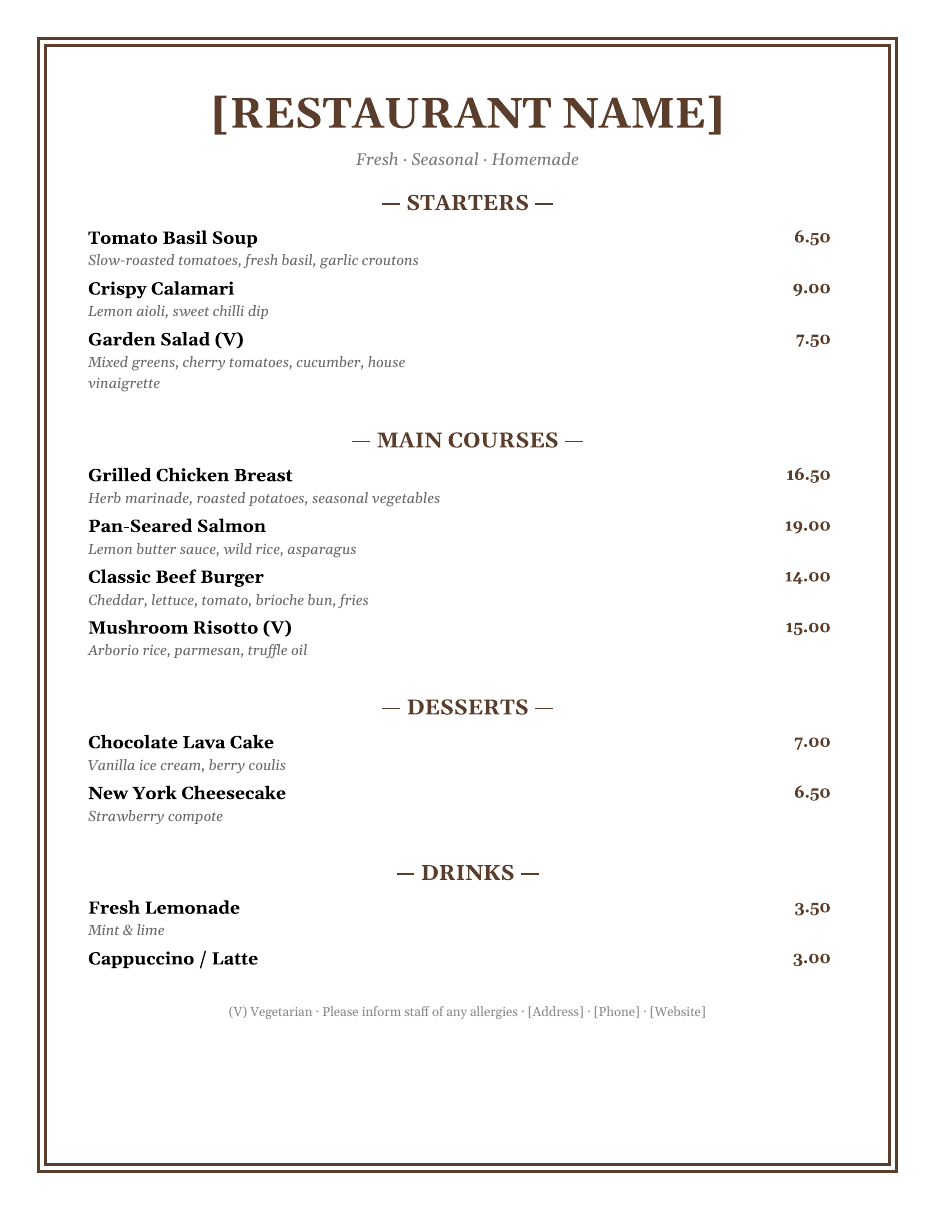
The template opens in Microsoft Word, Google Docs, LibreOffice Writer and Pages. It prints on a single A4 or US Letter page and can be exported as a PDF for your website, QR code menus and delivery platforms.
Features of this menu template
- A classic, upscale design with a warm brown colour palette and a decorative page border.
- A bold restaurant name header with a short tagline for your concept.
- Four ready-made sections: starters, main courses, desserts and drinks.
- Dish names in bold with short italic descriptions underneath.
- Right-aligned prices that are easy to scan without dominating the page.
- Dietary labels such as (V) for vegetarian, and an allergy note in the footer.
- A footer for your address, phone number and website.
- Simple tables that keep everything aligned when you add or remove dishes.
Who can use this menu template?
- Restaurants, bistros and fine-dining venues.
- Cafes, coffee shops and bakeries.
- Pubs, bars and gastropubs.
- Food trucks and pop-up kitchens.
- Hotels and bed-and-breakfasts.
- Caterers preparing event or banquet menus.
- Wedding, birthday and dinner party hosts.
- Schools, offices and canteens.
How to customize the menu step by step
- Replace [Restaurant Name] and the tagline with your own branding, and add your logo above the name with Insert > Pictures.
- Rename the sections to suit your menu, for example Breakfast, Lunch, Small Plates, Pizzas or Kids' Menu.
- Type your dish names, descriptions and prices over the sample text. Press Tab in the last row of a section to add a new dish.
- Delete rows you do not need by selecting them and choosing Layout > Delete > Delete Rows.
- Change the colour scheme by selecting text and choosing a new font colour, and change the border under Design > Page Borders.
- Choose fonts that match your concept: a classic serif for fine dining, a rounded sans-serif for a family cafe or a hand-drawn style font for a bakery.
- Update the footer with your address, phone, website and allergy statement.
- Print a test copy or export to PDF and proofread prices carefully.
Menu design tips that increase sales
Use the golden triangle
Menu engineering research suggests diners' eyes often move to the middle, then the top right, then the top left of a menu. Place your most profitable dishes in these areas, or at the top of each section, where they are seen first.
Keep it focused
Too many choices slow decisions and increase kitchen waste. Many successful restaurants offer five to eight items per section. If your menu is long, consider separate lunch, dinner and drinks menus.
Remove currency symbols
Writing prices as "16.50" rather than "$16.50" makes the price less prominent, which studies suggest can encourage guests to focus on the food rather than the cost.
Avoid price columns
Lining prices up in a single column invites customers to compare and choose the cheapest option. Placing the price at the end of the description, or close to the dish name, reduces price shopping.
Highlight signature dishes
Use a box, icon or "Chef's Special" label to draw attention to one or two high-margin dishes per section. Do not overuse highlights, or nothing will stand out.
How to write menu descriptions that sell
Good descriptions help guests imagine the taste and justify the price. Keep them short, ideally one line, and focus on ingredients, preparation and origin. Use sensory words such as crispy, slow-roasted, tangy, creamy or charred. Mention local or seasonal ingredients and named suppliers if they add value, for example "free-range chicken from Green Valley Farm". Avoid clichés like "delicious" and "mouth-watering", which add length without information. Compare "Chicken with potatoes" with "Herb-marinated grilled chicken breast, crispy roasted potatoes and seasonal vegetables": the second sounds worth more and tells the guest exactly what to expect.
Pricing your menu
- Calculate food cost for each dish, including garnishes and sauces.
- Aim for a food cost percentage that suits your concept, often between 25% and 35% of the selling price.
- Consider labour, overheads and competitors' prices, not just ingredients.
- Use consistent price endings, such as .00 or .50, for a clean look.
- Review prices regularly as ingredient costs change, and update your Word menu immediately.
Allergens and dietary information
Clear dietary labelling builds trust and is a legal requirement in many places. Use simple codes such as (V) vegetarian, (VG) vegan and (GF) gluten-free, and add a key at the bottom of the page. Include a statement encouraging guests to inform staff of allergies. In regions with allergen labelling laws, such as the 14 major allergens rules in the UK and EU, make sure staff can provide full allergen information for every dish on request.
Printing and presenting your menu
- Print on heavy matte or silk paper of at least 200 gsm for durability.
- Laminate menus or use menu covers in busy venues where spills are common.
- Use high-quality print settings so text and borders are crisp.
- Export a PDF version for your website, Google Business Profile and social media.
- Create a QR code that links to the PDF for contactless ordering.
- Print table tents or chalkboard menus for daily specials so you do not need to reprint the main menu.
Menu ideas for special occasions
The same template works for event menus. For a wedding, list the courses of the reception dinner with the couple's names and date in the header. For a holiday such as Christmas, Eid or Thanksgiving, create a set menu with two or three choices per course and a fixed price. For a birthday or dinner party at home, print one menu per place setting as a stylish touch. Caterers can use the layout to present package options to clients, with prices per person in place of individual dish prices.
Common menu mistakes to avoid
- Spelling mistakes and inconsistent capitalization.
- Outdated prices or dishes that are no longer available.
- Fonts that are too small or too decorative to read in dim lighting.
- Cluttered layouts with too many photos or colours.
- Missing dietary or allergen information.
- Inconsistent description lengths that make the page look messy.
Menu layouts for different types of venues
The single-page layout suits most small restaurants, but different venues benefit from different formats. A cafe with a short menu might use a single A5 card or a chalkboard-style design with a few highlighted specials. A family restaurant often uses a larger laminated menu with clear sections and a separate kids' menu. Fine-dining venues tend to prefer a minimalist single page with generous white space and a short tasting menu. Bars may need a separate cocktail and wine list with tasting notes and glass and bottle prices. Food trucks benefit from a large, high-contrast board that can be read from a distance. With Word, you can save each version as its own file using the same fonts and colours, so every menu feels like part of one brand.
Frequently asked questions
Is this menu template free?
Yes. Download, edit and print it free for your restaurant, cafe or event.
Can I edit the menu in Google Docs?
Yes. Upload the DOCX to Google Drive and open it with Google Docs. The layout and tables are preserved.
Can I make a two-page or folded menu?
Yes. Copy the page to create a second page for drinks or desserts, or change the page orientation to landscape and use two columns for a bi-fold menu.
How often should I update my menu?
Review it at least every season, and update immediately when prices change. A Word template makes small updates quick and inexpensive.
Should I include photos on my menu?
A few high-quality photos can help casual restaurants, but fine-dining menus usually rely on typography alone. If you use photos, make them professional and limit them to signature dishes.
Can I add a logo to the menu?
Yes. Click above the restaurant name, choose Insert > Pictures and add your logo. Keep it modest in size so the menu items remain the focus, and use a transparent PNG for the cleanest look on coloured or textured paper.
Related templates
Promote your venue with our poster templates, recipe card templates, gift certificate templates and greeting card templates.