
A good timetable makes a school week run smoothly. Students know which books to bring, teachers know where they need to be and parents can see at a glance what their child is studying each day. Whether you are a class teacher preparing the schedule for a new term, a school coordinator balancing subjects, or a student organising your own week, a clear timetable saves time and confusion.
Our free timetable template for Excel is a colour-coded weekly class timetable for Monday to Friday. It has eight periods a day with times, a morning break and a lunch break, a different colour for each subject and an automatic "periods per week" count that tells you how many lessons each subject receives. The sample is for Grade 7-B. Preview it below and download the XLSX.
Download the free timetable template
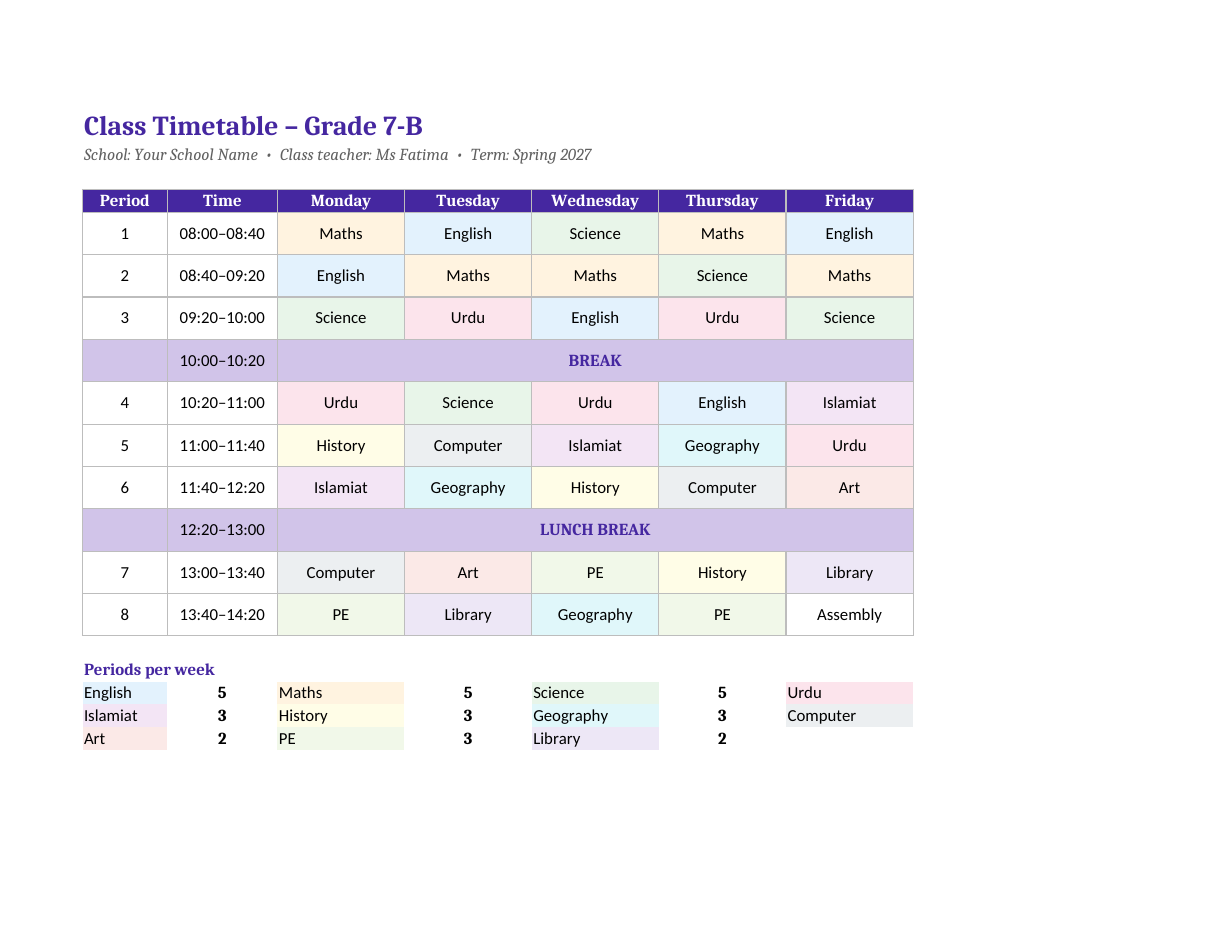
The template works in Microsoft Excel, Google Sheets and LibreOffice Calc, and prints on one landscape page.
What the template includes
- A title with class name, school name, class teacher and term.
- Five day columns, Monday to Friday.
- Eight periods with start and end times, from 08:00 to 14:20 in the sample.
- A 20-minute break and a 40-minute lunch break that span the whole week.
- Eleven colour-coded subjects: English, Maths, Science, Urdu, Islamiat, History, Geography, Computer, Art, PE and Library.
- A "Periods per week" summary that counts each subject automatically with COUNTIF formulas.
- A landscape print layout that fits one page.
How to use the timetable template
- Enter your class name, school, teacher and term in the title area.
- Change the period times to match your school day.
- Type a subject into each period cell.
- Check the periods-per-week counts against your curriculum requirements.
- Move lessons around until every subject has the right number of periods.
- Add room numbers or teacher initials if needed.
- Print copies for the classroom, students and parents.
Understanding the sample timetable
In the sample, the core subjects of Maths, English, Science and Urdu each receive five periods a week, which is common for main subjects. Islamiat has three periods, while History, Geography, Computer, PE and Library each have two or three. Art has two periods and Friday ends with a weekly assembly. Core subjects are mostly placed in the morning, when students tend to concentrate best, and activity subjects such as PE, Art and Library come after lunch.
Because the summary uses formulas, you can experiment freely. Change a Tuesday Science lesson to Maths and the counts update instantly, so you always know whether the week is balanced.
Tips for creating a balanced timetable
- Spread each subject across the week rather than stacking lessons on one day.
- Put demanding subjects like Maths and Science in the morning.
- Avoid placing the same subject in consecutive periods unless it is a double lesson for practical work.
- Schedule PE and Art away from the first period so students are not changing clothes first thing.
- Balance heavy and light days so homework is spread evenly.
- Check that each teacher is not booked in two classes at the same time.
- Leave time for assemblies, library visits and clubs.
Customising colours and subjects
Each subject has its own fill colour, which makes it easy to scan the week. To add a new subject, type it in a period cell, colour the cell, and add the subject name and a COUNTIF formula to the summary area. To change a colour, select every cell for that subject and apply a new fill, or use conditional formatting so colours change automatically when you type a subject name.
Using conditional formatting
Select the period cells, choose Conditional Formatting, then "Format only cells that contain" and set a rule such as "Cell value equal to Maths" with an orange fill. Repeat for each subject. After that, any subject you type is coloured automatically.
Other ways to use the timetable
- University lecture schedules with room numbers.
- Tuition centre and coaching class timetables.
- Teacher personal timetables showing which class they teach each period.
- Exam revision timetables for students.
- Training course schedules for workplaces.
- Weekly routines for home schooling.
Teacher timetables vs class timetables
A class timetable shows what one class studies during the week. A teacher timetable shows which class each teacher is teaching in each period. Schools usually build both from the same master schedule. You can copy this sheet for each teacher, replace subjects with class names, and use the same colour system to show free periods.
Printing and sharing
The page is set to landscape and scaled to fit one sheet. For classroom display, print on A3 for larger text. To share with parents, save as PDF, or upload the file to Google Sheets and share a view-only link so updates appear immediately.
Step-by-step: building a timetable from scratch
If you are creating a timetable for a new term, start with the fixed elements. Enter the school's bell times, the break and lunch periods and any whole-school events such as assembly. Next, list every subject with the number of periods it must receive each week according to your curriculum. Add up the periods to make sure they fit into the available slots; in the sample, eight periods a day for five days gives forty teaching slots.
Place the subjects with the most periods first, spreading them across all five days. Then add subjects that need special rooms or teachers, such as Computer, Science practicals and PE, checking that the lab, computer room or sports ground is free at that time. Fill the remaining slots with the other subjects and finish by checking the periods-per-week summary. If a count is wrong, swap two lessons rather than starting again.
Handling shared teachers and rooms
In most schools, specialist teachers teach several classes. Before finalising a class timetable, compare it with the timetables of other classes to make sure no teacher or room is double-booked. A simple way is to keep one sheet per class in the same workbook and add a master sheet that lists each teacher's lessons by period.
Timetables for students: making the most of your week
Students can use the same template as a study planner. Copy your school timetable into the sheet, then add a second sheet for after-school hours with homework, revision, tuition and activities. Colour-coding by subject makes it easy to see whether you are giving enough time to each subject, and the periods-per-week counts can show how many study sessions you have planned for each one.
- Review each day's subjects the night before and pack your bag.
- Schedule revision for difficult subjects soon after the lesson.
- Leave free time for rest, sport and family.
- Update the timetable when exams or projects are coming up.
Sharing the timetable with parents
Parents appreciate a clear weekly timetable at the start of term. It helps them check homework, plan appointments around important lessons and make sure PE kit or art supplies are packed on the right days. Send a PDF copy home or post it in the class group, and send an updated version whenever the timetable changes.
Keeping the timetable up to date
Timetables change during the year when teachers leave, rooms are renovated or exam schedules are added. Keep the master file in one shared location, add the date of the latest version in the title area and tell students and parents when it changes. Saving older versions with the date in the file name lets you look back if questions arise about which timetable was in use.
Frequently asked questions
Is the timetable template free?
Yes. Download, edit and print it for your school, class or personal use.
Can I add Saturday?
Yes. Insert a column after Friday, add the heading and extend the COUNTIF range to include the new column.
Can I change the number of periods?
Yes. Insert or delete rows in the timetable and update the formula ranges in the summary area.
Why does the count for a subject show zero?
COUNTIF needs the exact subject name. Check for spelling differences or extra spaces in the period cells.
Does it work in Google Sheets?
Yes. Upload the XLSX to Google Drive and open it with Google Sheets; colours and formulas are kept.
Can I use it for a teacher's personal timetable?
Yes. Replace subjects with class names such as 7-B or 8-A and use the colours to show different classes and free periods.
How do I print it larger?
Choose A3 paper in the print settings; the page is already scaled to fit one sheet.
Can I add teacher names or room numbers?
Yes. Type them under the subject in each cell, for example "Science – Lab 2", or add a second line with Alt+Enter. Widen the columns slightly if the text does not fit.
Related templates
- Weekly planner templates
- Lesson plan templates
- Attendance tracking templates
- Project schedule template
- Weekly schedule templates